Windows 共享文件夹权限验证

在 Windows 中,共享权限和 NTFS 权限共同决定了用户对文件夹或文件的访问权限。当用户尝试访问某个共享文件夹时,系统首先检查共享权限,然后再检查 NTFS 权限。最终的权限由两者中最严格的权限决定。这意味着如果共享权限不允许某项操作,即使 NTFS 权限允许,用户也无法执行该操作。

举个例子来说明这一点:

  1. 文件夹 A 设置了共享权限,允许用户 User1 只读访问。
  2. 文件夹 A 的 NTFS 权限赋予了用户 User1 写入权限。

在这个场景下,尽管 NTFS 权限允许 User1 进行写入操作,但由于共享权限仅授予了只读权限,User1 在通过网络访问文件夹 A 时只能读取,无法写入。这是因为共享权限限制了 User1 的网络访问能力。

换句话说,如果共享权限和 NTFS 权限存在冲突,最终的权限将遵循较严格的那一项。在这个例子中,共享权限比 NTFS 权限严格,所以 User1 最终的权限是只读。

总结一下,Windows 共享权限和 NTFS 权限的交集就是两者中最严格的权限。如果共享权限不允许某项操作,即使 NTFS 权限允许,用户也无法执行该操作。

要在 PowerShell 中查看共享文件夹的共享权限和 NTFS 权限,您可以使用以下命令:

查看共享权限

  1. 打开 PowerShell。
  2. 输入以下命令并替换 <folder_name> 为您想要查看的共享文件夹的名称:
Get-Acl "<folder_name>" | Format-List AccessToString

这将显示与该文件夹关联的所有共享权限。

查看 NTFS 权限

  1. 打开 PowerShell。
  2. 输入以下命令并替换 <folder_name> 为您想要查看的文件夹的名称:
Get-Acl "<folder_name>" | Select-Object -ExpandProperty Access

这将列出所有与该文件夹相关的 NTFS 权限。

如果您想更详细地查看特定用户的权限,可以使用以下命令:

Get-Acl "<folder_name>" | Select-Object -ExpandProperty Access | Where-Object {$_.IdentityReference -eq "username"} 

请将 username 替换为要查询的具体用户名。

https://petri.com/how-to-use-powershell-to-manage-folder-permissions

https://www.delftstack.com/zh/howto/powershell/managing-acl-permissions-using-powershell

https://cn.a-d.site/?p=3625

查看磁盘分区表类型、IOPS 、吞吐量

window 使用 get-disk 查看 Partition Style

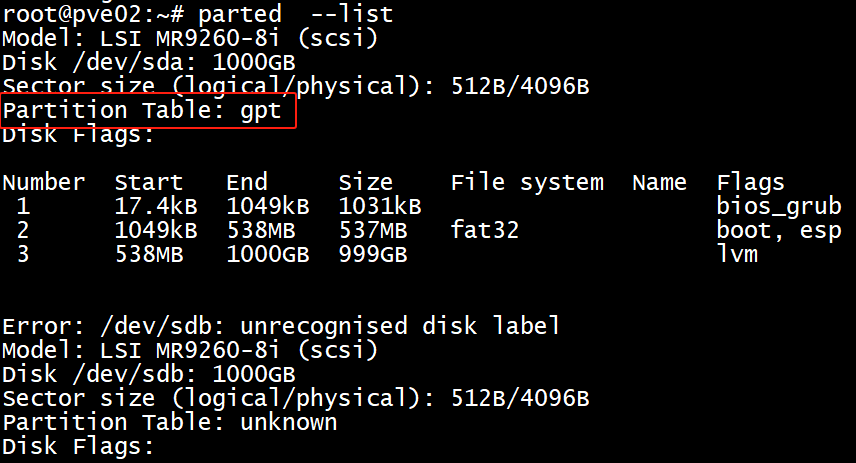
Linux 使用 parted -l

Partition Table: msdos                  # MBR分区表格式

Partition Table: gpt                        # GPT分区表格式(GUID Partition Table) 

Partition Table: loop                      # 对一整块磁盘直接创建文件系统使用,这样的磁盘的分区表类型就会显示成loop

Partition Table: unknown               # 一般一个新磁盘可能会显示成 unknown

IOPS 、吞吐量 (单位时间内的输入输出和传输总量)

  • 磁盘IOPS(Input/Output Operations Per Second,每秒输入输出操作次数)和吞吐量是衡量存储系统性能的两个重要指标。它们各自反映了存储设备在不同应用场景下的能力。
  • IOPS
  • 定义:IOPS是指单位时间内系统能够处理的读写请求数量。它通常用来描述随机访问工作负载的性能,比如数据库操作。
  • 影响因素
    • 队列深度:指同时可以处理的IO请求的数量。较高的队列深度可能增加IOPS。
    • 数据块大小:对于小的数据块,如4KB或更小,IOPS值较高;而对于大的数据块,则吞吐量更为关键。
    • 缓存命中率:如果大量请求能从缓存中得到满足而不是直接从物理介质上读取,那么IOPS将显著提高。
    • 并发度:多个线程或进程同时进行读写操作时的效率也会影响IOPS。
  • 应用场景:适用于需要快速响应时间的应用程序,例如在线事务处理(OLTP)系统、邮件服务器等。
  • 吞吐量
  • 定义:吞吐量指的是单位时间内可以传输的数据量,通常以MB/s (兆字节每秒) 或 GB/s (吉字节每秒) 来衡量。它是评价顺序读写速度的一个好方法。
  • 影响因素
    • 带宽限制:硬盘接口类型(SATA, SAS, NVMe等)决定了最大理论上的吞吐量。
    • 数据块大小:较大的数据块有利于提高吞吐量。
    • 文件系统开销:某些文件系统可能会引入额外开销从而降低实际可达到的吞吐量。
    • 存储介质特性:SSD相比HDD具有更高的吞吐量。
  • 应用场景:适合于大数据分析、视频流媒体服务等领域,在这些场景下,大量的连续数据被读取或者写入。
  • 总结
  • 简单来说,IOPS关注的是每秒钟可以完成多少次读写操作,而吞吐量则侧重于这些操作能够移动多少数据。选择合适的存储解决方案时,应根据具体应用的需求来权衡这两个方面。例如,对于需要频繁但小规模访问的工作负载,高IOPS可能是优先考虑的因素;而对于那些涉及大文件传输的任务,则更加重视吞吐量的表现。
  • 使用 PowerShell
  • PowerShell提供了强大的命令行接口,通过它可以查询到更详细的性能数据。
  • 查看IOPS:Get-Counter -Counter "\PhysicalDisk(_Total)\Disk Reads/sec","\PhysicalDisk(_Total)\Disk Writes/sec"
  • 查看吞吐量:Get-Counter -Counter "\PhysicalDisk(_Total)\Disk Read Bytes/sec","\PhysicalDisk(_Total)\Disk Write Bytes/sec"

Linux 使用sysstat 工具中的iostat -x 1 工具查看

powershell 添加用户环境变量

https://www.pdq.com/blog/categories/powershell/1

https://www.tenforums.com/tutorials/121664-set-new-user-system-environment-variables-windows.html

Set New User Environment Variables in Command Prompt

1 Open a command prompt.

2 Type the command below into the command prompt, and press Enter. (see screenshot below)

setx [variable name] "[variable value]"

Substitute [variable name] in the command above with the actual variable name (ex: “Downloads”) you want to use.

Substitute [variable value] in the command above with the actual variable value (ex: “C:\Users\Brink\Downloads”) you want to use.

3 You can now close the command prompt if you like.

Set New User Environment Variables in PowerShell

1 Open Windows PowerShell.

2 Type the command below into PowerShell, and press Enter. (see screenshot below)

[Environment]::SetEnvironmentVariable("[variable name]","[variable value]","User")

Substitute [variable name] in the command above with the actual variable name (ex: “Downloads”) you want to use.

Substitute [variable value] in the command above with the actual variable value (ex: “C:\Users\Brink\Downloads”) you want to use.

3 You can now close Windows PowerShell if you like.

Set New System Environment Variables in Command Prompt

You must be signed in as an administrator to do this option.

1 Open an elevated command prompt.

2 Type the command below into the elevated command prompt, and press Enter. (see screenshot below)

setx [variable name] "[variable value]" -M

Substitute [variable name] in the command above with the actual variable name (ex: “Downloads”) you want to use.

Substitute [variable value] in the command above with the actual variable value (ex: “%UserProfile%\Downloads”) you want to use.

3 You can now close the elevated command prompt if you like.

Set New System Environment Variables in PowerShell

You must be signed in as an administrator to do this option.

1 Open an elevated Windows PowerShell.

2 Type the command below into the elevated PowerShell, and press Enter. (see screenshot below)

[Environment]::SetEnvironmentVariable("[variable name]","[variable value]","Machine")

Substitute [variable name] in the command above with the actual variable name (ex: “Downloads”) you want to use.

Substitute [variable value] in the command above with the actual variable value (ex: “%UserProfile%\Downloads”) you want to use.

3 You can now close the elevated Windows PowerShell if you like.

Windows AcitveDirectory 查看指定OU用户

查询包含特定字符OU名称并导出至csv文件

Get-ADOrganizationalUnit -Filter {Name -Like “可删除*”} | Select-Object Name,ObjectGuid,DistinguishedName | Export-Csv -Encoding UTF8 -NoTypeInformation -Path c:\可删除OU.csv

查询OU中的用户

#定义顶级OU
$OUs = Get-ADOrganizationalUnit -SearchBase “DC=Contoso,DC=com” -Filter {Name -like “可删除*”}
#定义数组用于存放数据
$UserList = @()

#遍历OU
Foreach ($OU in $OUs)
{

#查询当前OU的所有用户
$Users = Get-ADUser -SearchBase $OU -Filter *  -SearchScope 1

#遍历用户

Foreach ($User in $Users)
{

#将用户名和OU信息添加到数组

$UserList += [PSCustomObject]@{
OU = $OU.Name
Name = $User.Name
}
}
}

#输出信息
$UserList

AD 巡检(8) 服务端口

Protocol and PortAD and AD DS UsageType of traffic
TCP and UDP 389Directory, Replication, User and Computer Authentication, Group Policy, TrustsLDAP
TCP 636Directory, Replication, User and Computer Authentication, Group Policy, TrustsLDAP SSL
TCP 3268Directory, Replication, User and Computer Authentication, Group Policy, TrustsLDAP GC
TCP 3269Directory, Replication, User and Computer Authentication, Group Policy, TrustsLDAP GC SSL
TCP and UDP 88User and Computer Authentication, Forest Level TrustsKerberos
TCP and UDP 53User and Computer Authentication, Name Resolution, TrustsDNS
TCP and UDP 445Replication, User and Computer Authentication, Group Policy, TrustsSMB,CIFS,SMB2, DFSN, LSARPC, NbtSS, NetLogonR, SamR, SrvSvc
TCP 25ReplicationSMTP
TCP 135ReplicationRPC, EPM
TCP DynamicReplication, User and Computer Authentication, Group Policy, TrustsRPC, DCOM, EPM, DRSUAPI, NetLogonR, SamR, FRS
TCP 5722File ReplicationRPC, DFSR (SYSVOL)
UDP 123Windows Time, TrustsWindows Time
TCP and UDP 464Replication, User and Computer Authentication, TrustsKerberos change/set password
UDP DynamicGroup PolicyDCOM, RPC, EPM
UDP 138DFS, Group PolicyDFSN, NetLogon, NetBIOS Datagram Service
TCP 9389AD DS Web ServicesSOAP
UDP 67 and UDP 2535DHCP Note DHCP is not a core AD DS service but it is often present in many AD DS deployments.DHCP, MADCAP
UDP 137User and Computer Authentication,NetLogon, NetBIOS Name Resolution
TCP 139User and Computer Authentication, ReplicationDFSN, NetBIOS Session Service, NetLogon